 Welcome To JG IT Solution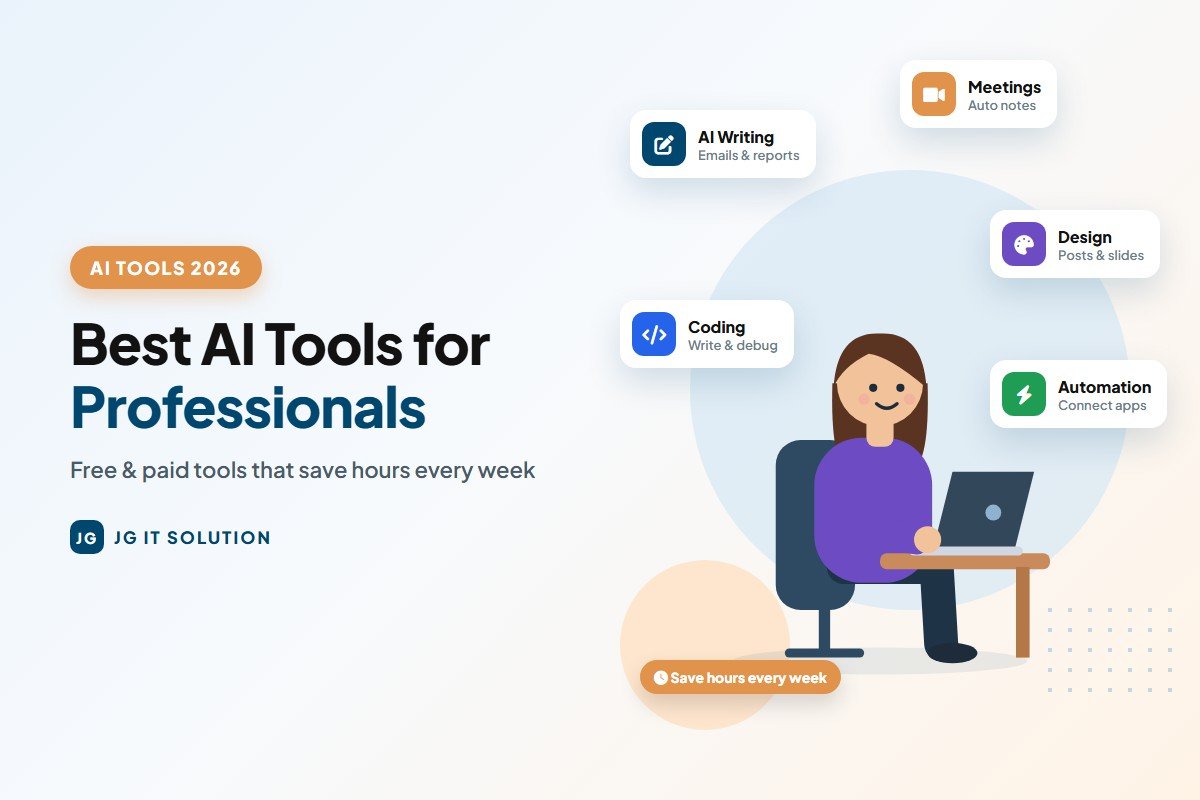
Every professional today has the same problem: too much work and too little time. Emails, meetings, reports, presentations, social media, data, follow-ups - the list never ends. The good news is that a new generation of AI tools for professionals can take a big part of this load off your shoulders.
In this guide, we explain the most useful AI tools in simple language - what each tool does, who should use it and how it can save you time every day. Whether you are a business owner, manager, marketer, developer, accountant, HR professional or freelancer, you will find tools here that you can start using today.
Note: AI tools change very fast. Features and prices are updated regularly, so always check the official website before buying a paid plan. [VERIFY current plans and prices]
Why Professionals Are Using AI Tools in 2026
A few years ago, AI was something only large companies could afford. Today, most of the tools in this list have a free plan or a low-cost plan, and they work directly in your browser or phone. Professionals use them because they:
- Save time on repetitive work like drafting emails, writing reports and making notes.
- Improve quality by checking grammar, structure and clarity.
- Speed up research by summarising long documents and web pages.
- Reduce manual work by connecting apps and automating routine tasks.
- Help small teams compete with bigger companies by doing more with fewer people.
Quick List: Best AI Tools for Professionals in 2026
| Category | AI Tools | Best for |
|---|---|---|
| AI assistants | ChatGPT, Claude, Gemini | Writing, research, ideas, analysis |
| Office productivity | Microsoft 365 Copilot, Gemini in Google Workspace | Documents, sheets, emails, slides |
| Research | Perplexity | Answers with sources |
| Writing | Grammarly | Grammar, tone, clear writing |
| Notes & knowledge | Notion AI | Notes, wikis, project docs |
| Meetings | Otter.ai, Fireflies.ai, built-in meeting assistants | Transcripts, summaries, action items |
| Design & presentations | Canva, Gamma | Graphics, social posts, slides |
| Coding | GitHub Copilot, Claude, ChatGPT | Writing and fixing code |
| Automation | Zapier, Make, Microsoft Power Automate | Connecting apps, automating tasks |
1. AI Assistants: ChatGPT, Claude and Gemini
AI assistants are the starting point for most professionals. You type a question or a task, and they write, explain, summarise or brainstorm for you.
- ChatGPT (by OpenAI) - an all-round assistant with writing, image generation, voice and file analysis.
- Claude (by Anthropic) - strong for long documents, natural writing and coding.
- Gemini (by Google) - works closely with Gmail, Google Docs, Drive and Android.
Use them for: email drafts, proposals, meeting agendas, policy documents, summaries of long PDFs, Excel formulas and new ideas.
Not sure which one to choose? Read our detailed comparison: ChatGPT vs Claude vs Gemini - which AI is best for you.
2. Microsoft 365 Copilot
If your office runs on Word, Excel, PowerPoint, Outlook and Teams, Microsoft 365 Copilot brings AI directly into these apps. You can ask it to draft a document in Word, summarise a long email thread in Outlook, create a presentation from a document or understand data in Excel.
Best for: companies already using Microsoft 365. Copilot features depend on your Microsoft plan. [VERIFY plan details on microsoft.com]
3. Gemini in Google Workspace
For teams that use Gmail, Google Docs, Sheets, Slides and Meet, Gemini can help write emails, create document drafts, organise data in Sheets and take notes in meetings. Because everything stays inside Google Workspace, it is easy for teams to adopt.
Best for: startups and small businesses using Google Workspace.
4. Perplexity - AI Research With Sources
Perplexity is an AI answer engine. Instead of giving you ten blue links, it reads web pages and gives a summarised answer along with the sources it used. This makes it useful for market research, competitor research and quick fact-finding - and you can open the sources to verify the information.
Best for: consultants, marketers, analysts and anyone who researches regularly.
5. Grammarly - Clear and Professional Writing
Grammarly checks grammar, spelling, tone and clarity as you type in emails, documents and web forms. Its AI features can also rewrite sentences, shorten long text and adjust the tone to sound more formal or friendly.
Best for: professionals who write emails, proposals and reports in English every day.
6. Notion AI - Smarter Notes and Documents
Notion is a popular workspace for notes, project plans and team wikis. Notion AI can summarise pages, create action items from meeting notes, draft documents and answer questions based on your team's own pages.
Best for: teams that keep their knowledge, SOPs and project plans in one place.
7. AI Meeting Assistants: Otter.ai, Fireflies.ai and Built-in Tools
Meetings take a lot of time, and notes are often missed. AI meeting assistants join your calls, create a transcript and give you a summary with action items. Tools like Otter.ai and Fireflies.ai work with popular meeting apps, and Zoom, Google Meet and Microsoft Teams also offer built-in AI note features on some plans. [VERIFY plan availability]
Best for: managers, sales teams and consultants with many client calls.
Tip: always inform participants before recording or transcribing a meeting.
8. Canva - AI Design for Non-Designers
Canva makes design easy for everyone, and its AI features help you write text, generate images, resize designs for different platforms and create presentations quickly. Marketing teams and small business owners use it for social media posts, banners, brochures and pitch decks.
Best for: marketers, small business owners and content creators. For professional branding and campaign creatives, our graphic design services can help.
9. Gamma - AI Presentations in Minutes
Gamma creates presentations, documents and simple web pages from a short prompt or an outline. You describe the topic, and it builds a structured, well-designed deck that you can then edit.
Best for: sales pitches, internal updates, training material and client proposals.
10. GitHub Copilot - AI for Developers
GitHub Copilot works inside code editors like Visual Studio Code. It suggests code as you type, explains code, writes tests and helps fix errors. Developers also use Claude and ChatGPT to plan features, review code and debug problems.
Best for: software developers and IT teams.
11. Automation Tools: Zapier, Make and Power Automate
Automation tools connect your apps so that work moves automatically. For example, when a customer fills a form on your website, the details can be added to a Google Sheet, a CRM and a WhatsApp or email follow-up - without anyone copying data manually. Many of these tools now include AI steps that can summarise, classify or draft replies.
Best for: businesses with repetitive processes. Learn more in our guide to AI workflow automation.
AI Tools by Profession
| Profession | Useful AI tools | Example use |
|---|---|---|
| Business owner | ChatGPT / Claude / Gemini, Canva, Zapier | Offers, replies, social posts, automation |
| Marketer | Perplexity, Canva, Grammarly | Research, creatives, ad copy |
| Manager | Meeting assistants, Notion AI, Copilot | Meeting notes, reports, plans |
| Accountant | AI assistants, Excel Copilot | Formulas, data summaries, explanations |
| HR professional | AI assistants, Grammarly | Job descriptions, policies, letters |
| Developer | GitHub Copilot, Claude, ChatGPT | Coding, debugging, documentation |
| Sales | Meeting assistants, AI assistants | Call summaries, follow-up emails |
Free vs Paid AI Tools for Professionals
Most professionals do not need to pay for every tool. Here is a simple way to decide:
- Free plans are enough if you use AI a few times a day for emails, summaries and ideas. Most AI assistants, Canva and Grammarly offer useful free plans.
- Paid plans are worth it when you use a tool for several hours a week, need higher limits, team features, admin controls or better data protection.
- Business plans are recommended when your team works with client or customer data, because they usually give more control over how data is stored and used. [VERIFY each tool's business plan terms]
A smart approach is to pay for one main AI assistant that your whole team uses, and use free plans for the rest until you are sure you need more.
How Much Time Can AI Tools Really Save?
The time you save depends on your work, but the savings add up quickly. Imagine a sales manager who:
- Writes 15 follow-up emails a day - AI drafts cut this from 5 minutes to 2 minutes each.
- Attends 3 client meetings a day - an AI meeting assistant removes 15 minutes of note-making per meeting.
- Prepares a weekly report - AI summarises the data in minutes instead of an hour.
Together, that can easily free up more than an hour every working day - time that can go into selling, planning and serving customers better.
Safety Tips for Professionals Using AI
- Do not share passwords, OTPs, bank details, Aadhaar or PAN numbers with any AI tool.
- Remove client names and sensitive numbers before pasting documents into public AI tools.
- Turn on data controls or temporary chats where available for sensitive questions.
- Check AI-generated facts, legal clauses and calculations before sending them to clients.
- Use only official apps and websites - fake "AI" apps can steal your data.
How to Choose the Right AI Tools for Professionals
- Start with your biggest time-waster. Is it emails, meetings, reports or data entry? Pick a tool for that first.
- Use the free plan first. Test the tool on your real work for one or two weeks.
- Check where your data goes. Read the privacy and data settings, especially for client information.
- Prefer tools that fit your current apps. A tool inside Gmail or Microsoft 365 is easier to adopt.
- Train your team. A short guide with good prompts makes a big difference.
Common Mistakes Professionals Make With AI Tools
- Trusting every answer: AI can be confidently wrong. Always check facts, numbers and legal or financial content.
- Sharing confidential data: do not paste passwords, client data or private documents into tools your company has not approved.
- Buying too many tools: two or three well-used tools are better than ten unused subscriptions.
- No clear rules: teams need simple guidelines on which tools to use and how. Our guide to AI governance explains how to set them up.
A Simple 30-Day Plan to Start Using AI at Work
- Week 1: use one AI assistant daily for emails and summaries.
- Week 2: add a writing or meeting tool and save your best prompts.
- Week 3: automate one repetitive task, such as copying form leads into a sheet.
- Week 4: measure the time saved, write simple usage rules and share them with your team.
For everyday ideas and ready-to-copy prompts, see our guide on how to use AI in daily life.
Conclusion
The best AI tools for professionals are not the most expensive ones - they are the ones that fit your daily work. Start with an AI assistant, add one or two tools for your biggest time-wasters, and set simple rules for safe use. Within a month, you will save hours every week and produce better work.
Want to bring AI and automation into your business website, CRM or mobile app? JG IT Solution builds custom solutions - explore our website development and mobile app development services.
Frequently Asked Questions
-
What are the best AI tools for professionals?Popular AI tools for professionals include AI assistants like ChatGPT, Claude and Gemini, office tools like Microsoft 365 Copilot and Gemini in Google Workspace, Perplexity for research, Grammarly for writing, Notion AI for notes, AI meeting assistants, Canva and Gamma for design and presentations, GitHub Copilot for coding and Zapier or Make for automation.
-
Are there free AI tools for professionals?Yes. Many AI tools such as ChatGPT, Claude, Gemini, Canva and Grammarly offer free plans. Free plans are usually enough to start; paid plans give higher limits and more features.
-
Which AI tool is best for office work?If your office uses Microsoft 365, Microsoft 365 Copilot works inside Word, Excel, Outlook and Teams. If you use Gmail and Google Docs, Gemini in Google Workspace is a natural choice. AI assistants like ChatGPT and Claude work well for any office.
-
Can AI tools replace professionals?No. AI tools help professionals work faster by handling repetitive tasks, drafts and summaries, but people are still needed for judgement, decisions, relationships and checking the accuracy of AI output.
-
Is it safe to use AI tools with client data?Only use client data in AI tools your company has approved, preferably on business plans with proper data controls. Never share passwords, bank details or confidential documents in public AI tools.
-
How do I start using AI tools at work?Start with one AI assistant for emails and summaries, then add a tool for your biggest time-waster such as meetings or reports. Test free plans for a week or two, save useful prompts and set simple rules for safe use.